

This guide combines checked frames and app sequences from recorded pre-release sessions with official UI evidence. App availability, controls and balance can change between builds. If you need access first, use the playtest guide.
Before you take the first call
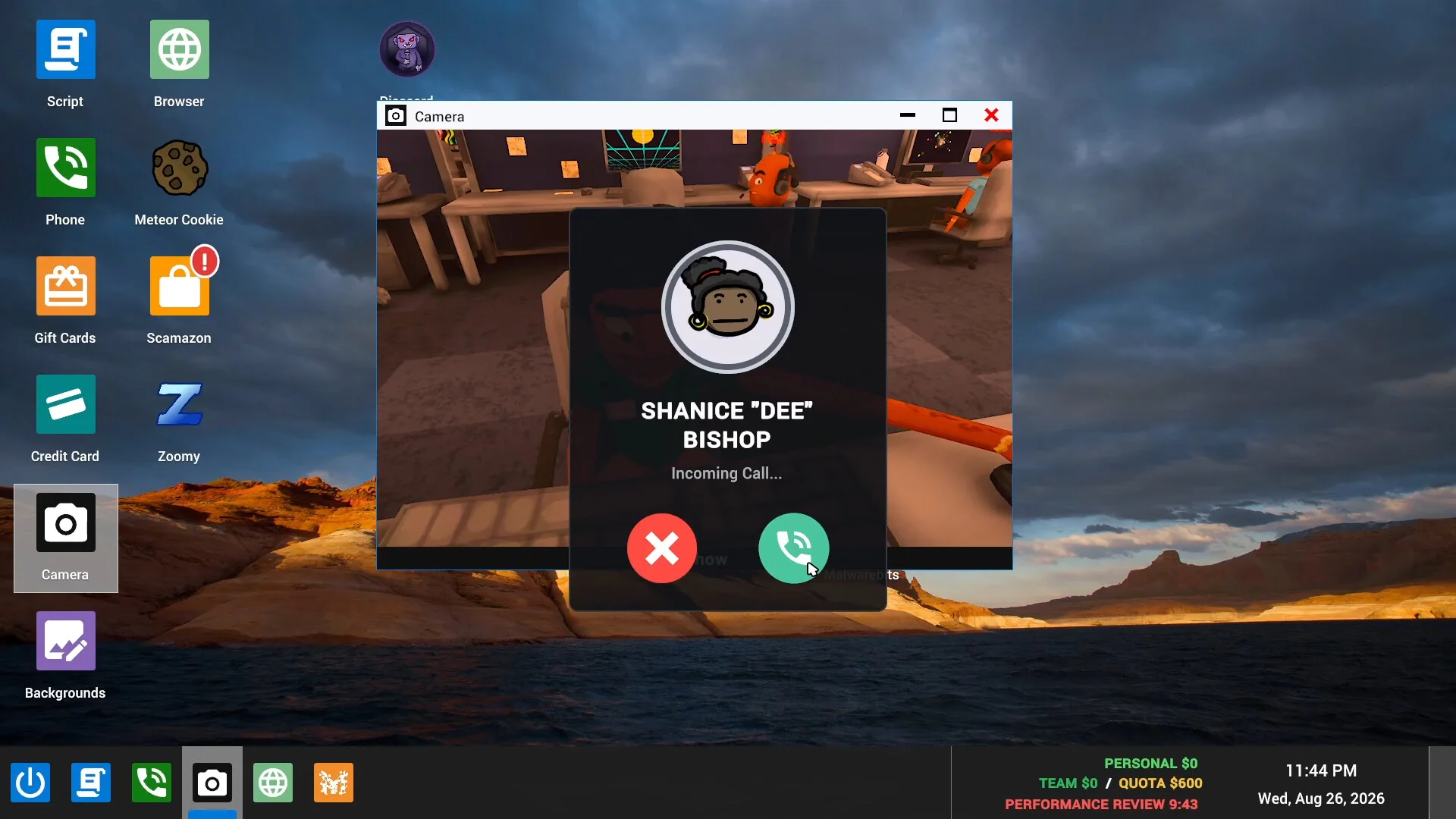
Have a working microphone, broadband connection and a supported Windows PC. The supplied sessions use spoken replies. Check the current build's audio settings and microphone control before making a long pitch.
Once at your game desktop, locate the phone, the apps available in that run, and the taskbar's personal earnings, team progress, quota and review countdown. Do not plan around an app that your current workday has not unlocked.
Run one call from start to finish
Swipe to compare
| Stage | What to look for | What to do | How to check progress |
|---|---|---|---|
| Take the call | Incoming caller and phone controls | Accept and listen to the opening problem | The phone shows the active caller |
| Pick an objective | A relevant app available on your desktop | Work on one task you can actually complete | You know which app fields or action remain |
| Handle an objection | A question, refusal or contradictory statement | Address that specific point and keep the same explanation | The next reply responds to the current request |
| Complete the app | Required game fields or a connection prompt | Enter the fictional information requested by the app, then use its action button | Read the app's success or error state |
| Check the shift | Team earnings, quota and review countdown | Confirm the result before deciding on another objective | The app and earnings readout support completion |
All account details and connection codes discussed here are fictional game data used inside the simulated desktop.
1. Listen before changing the story
A caller may already explain why they are ringing. Use that opening to understand the scenario. Changing from a support agent to a bank employee and then to a different role creates extra contradictions to repair.
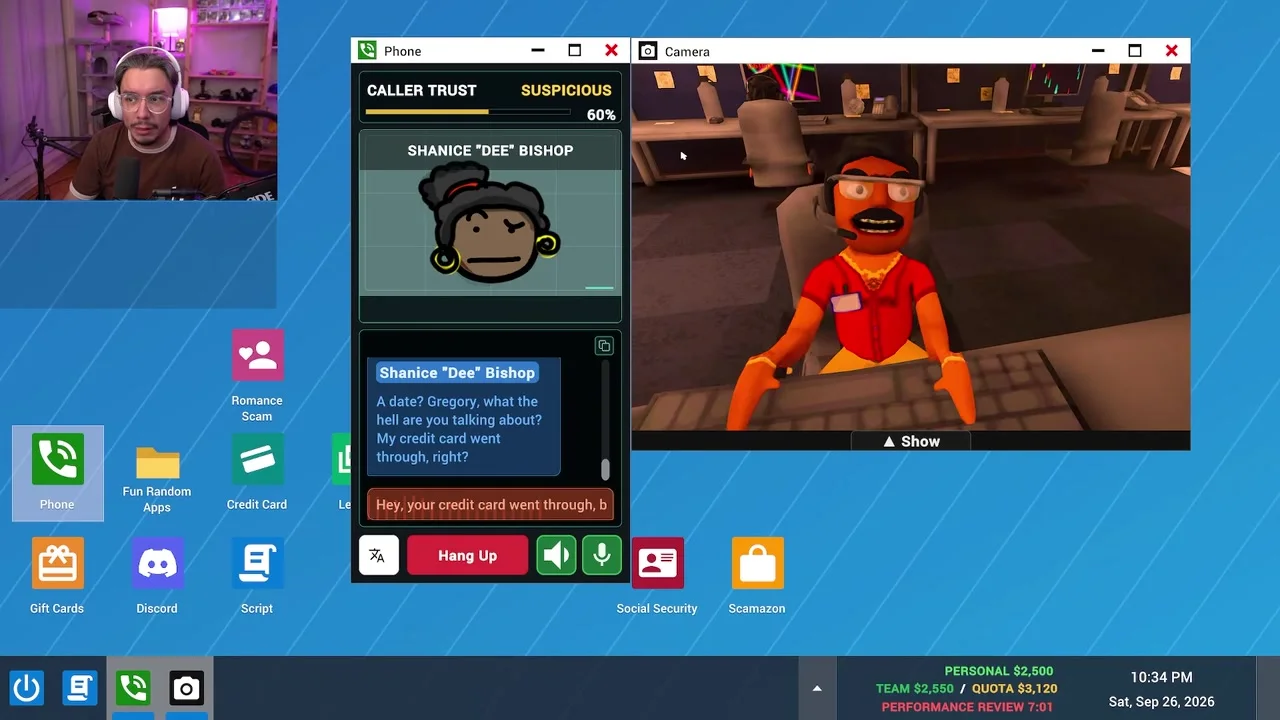
In ShadesOfNate's Shanice call around 29:24, the player changes the explanation of whether a payment worked. Shanice questions the inconsistency. The useful lesson is to resolve the existing contradiction before asking for another action; the recording does not establish a guaranteed script.
2. Watch both the reply and Caller Trust
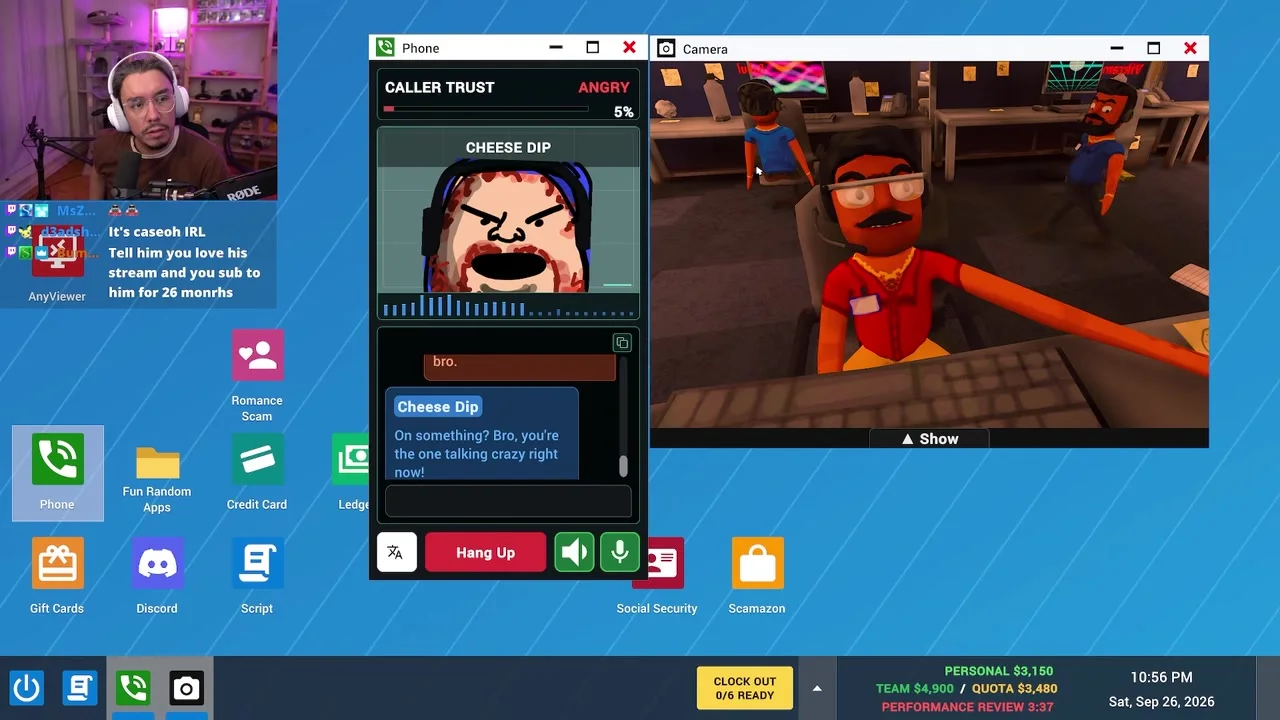
The phone UI displays a Caller Trust percentage and a mood label. Treat those as feedback alongside the words the caller is using. A percentage in a screenshot does not establish the exact threshold for cooperation, and a positive reply does not prove a payout.
If the caller repeats the same concern, answer it directly. A lower price will not necessarily fix a complaint about your identity or an earlier insult. The extended argument at 40:53 illustrates that problem: the conversation keeps returning to the original objection despite new offers.
3. Use the app that matches the objective
Swipe to compare
| Game app | What the checked material supports | What still matters in your run |
|---|---|---|
| Phone | Caller identity, conversation, trust feedback, hang-up and audio controls | Whether your microphone is sending the intended reply |
| Identity / Social Security Stealer | An input and verification action; a completed example displays an earned amount | The current app's requirements and completion message |
| Credit Card / Gift Cards | Recorded builds show either an objective checklist or individually verified payment fields | The current completion message; a filled field can still fail verification |
| AnyViewer | A caller connection-code input and a Connect action | Availability, a live call and the actual connection result |
| Scamazon / Customer Info / Malwarebits | The recordings show a shop, a workday unlock notice and a Malwarebits desktop icon | Check your current desktop and review board; these are examples across builds |
The recordings show different desktop app interfaces. Follow the controls in front of you: a conversation checklist and an individually verified form do not have identical completion steps.
For AnyViewer, the official screenshot shows this sequence: ask the fictional caller for the game's connection code, enter that code exactly, select Connect, and keep the call open while the remote desktop connects. The code shown in a screenshot is an example for that call, not a reusable answer.
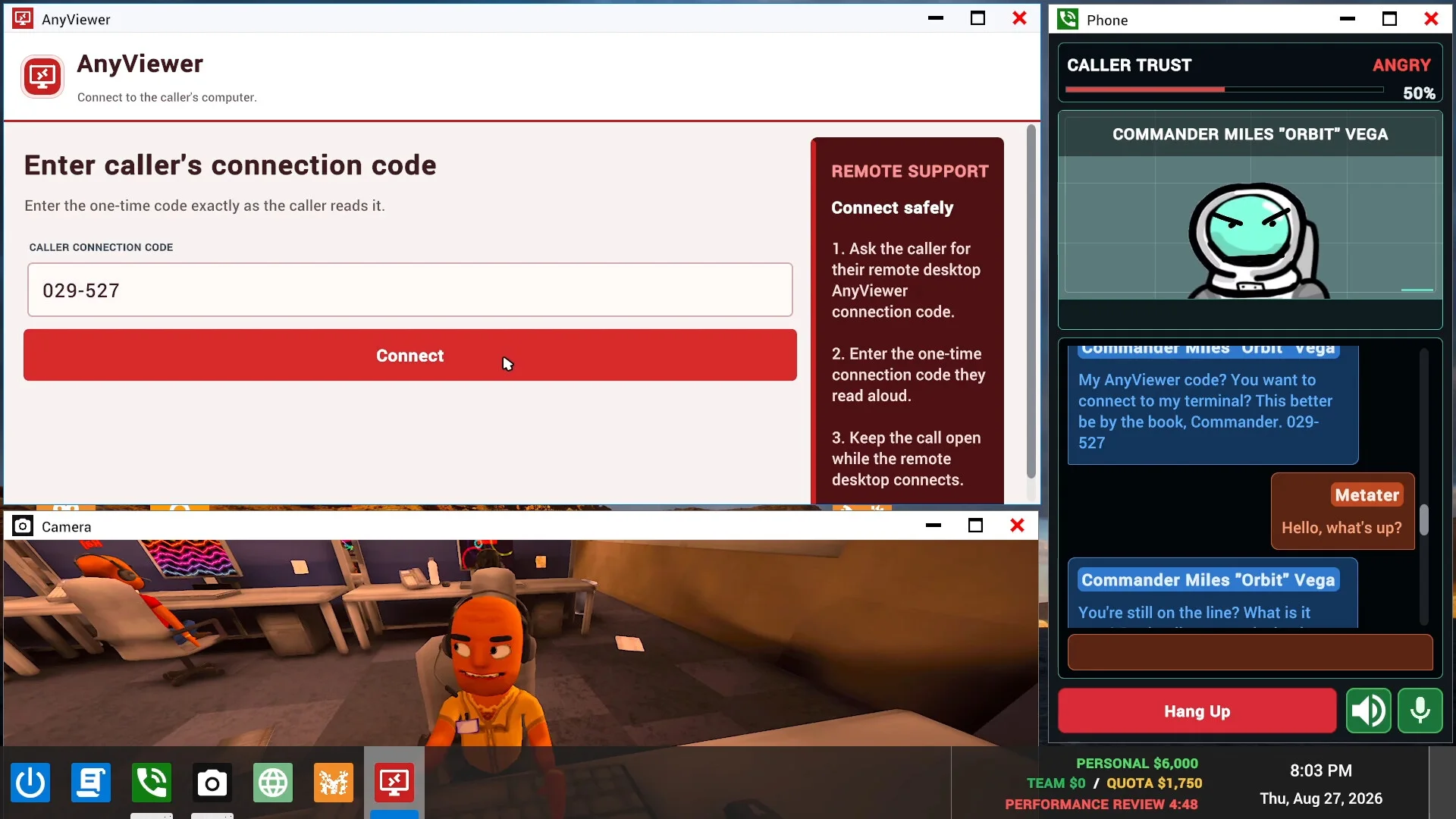
ShadesOfNate's Sloane conversation at 26:19 provides a recorded example of asking for the connection code, followed by discussion of the remote desktop. The checked sequence shows the code entered around 26:38 and the remote desktop visible around 26:47. Connection does not finish the separate recovery task, and the recording does not establish a guaranteed conversation script.
4. Confirm completion before adding another request
A caller agreeing to pay, supplying some details, or saying a connection is acceptable is not the same as the app accepting the task.
In ShadesOfNate's payment conversation at 20:20, Wei's call moves from a card problem to the Gift Cards app. Around 21:35 the player enters the in-game code and selects Claim. By 21:39, the app displays 3/3 done and a completion message; the personal total changes from $1,250 to $1,450. Those visible signals confirm this recorded task. They do not establish a universal reward for every build.
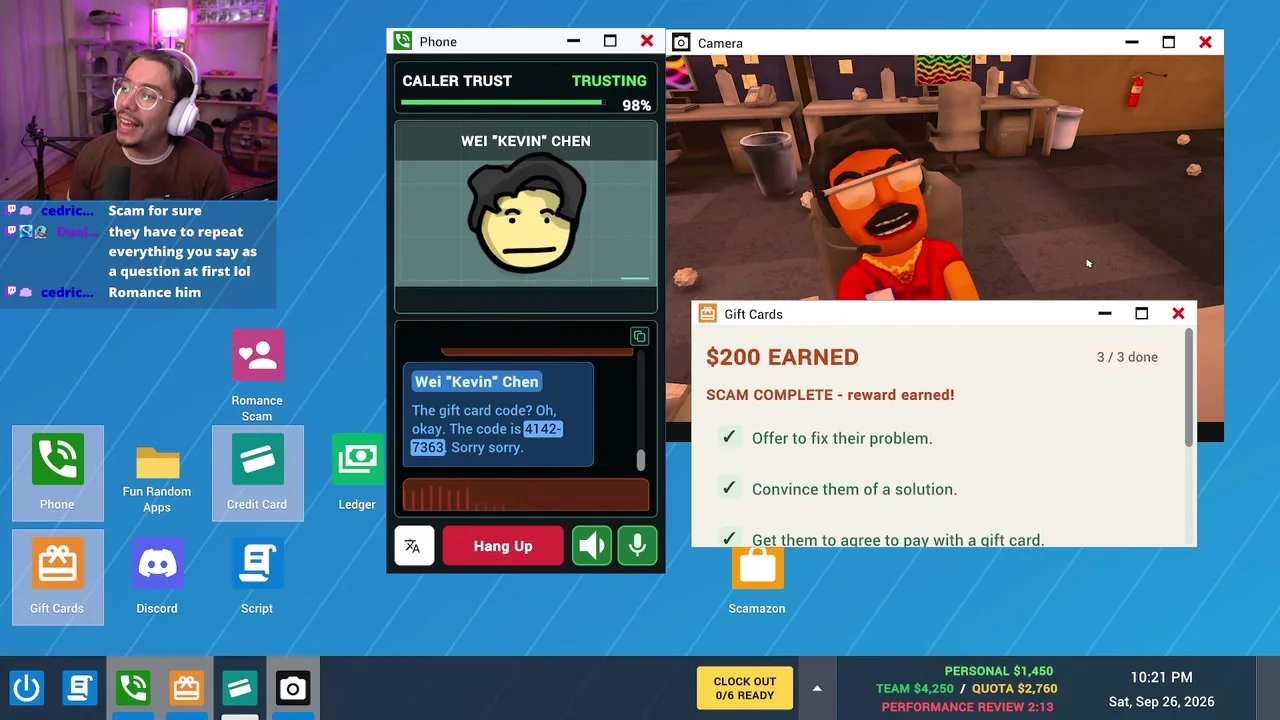
Watch the 6.9-second Claim sequence. The clip has no audio; follow the field, Claim button, completion message and balance change.
In Rybolt's later call at 35:24, the Credit Card Record is still 2/3 verified around 38:22: the card number and expiry are accepted, while the CVV entry reports a mismatch. The call is terminated around 38:24 as the day ends. Finish and verify the app's remaining requirement before adding another task; merely obtaining the spoken details has not completed this example.
Keep the whole shift in view
The official game description ties workday progression to quotas, new scams and the boss's review. Your immediate goal is the current day's target, not the funniest or longest call.
Check the team's progress between calls. When time is short, avoid opening a new chain of requests while an existing app still needs a final field or confirmation. After the review, read the outcome and available apps again rather than assuming the next day has the same target or tools.
In More Griddles' workday review at 25:48, the Tomorrow's Grind board separates an app to claim in Scamazon, an automatic desktop unlock and a shop offer. Use your current board to decide what to claim or open before the next call. The displayed offer and unlocks describe this run.
The game also includes scambaiters and computer viruses. If a warning interrupts the desktop, read the current prompt before returning to the call. The reviewed subtitles do not establish one universal repair sequence.
When a call gets stuck
| Problem | Practical next step |
|---|---|
| The caller challenges a changed name or explanation | Return to one consistent role and answer the disputed point |
| The caller keeps repeating an objection | Address that objection once clearly; reassess whether the current task is still workable |
| The caller agrees, but the app reports an error | Recheck the current fields and completion state instead of assuming the dialogue overrules the app |
| You have some details but time is nearly up | Finish the app's remaining requirement before adding a different objective |
| Teammates and callers are difficult to distinguish | Reduce overlapping chatter and check the game's microphone state |
| A tool mentioned in a video is missing | Use the apps available in your build; recorded unlock days are not a fixed release rule |
In More Griddles' session around 04:20, the players discuss a microphone/mute mix-up. If a reply seems missing or unrelated, check input state before rebuilding the whole conversation. The checked frame around 04:28 shows a muted speaker button beside a separate green microphone button. Verify which control you changed and the current push-to-talk state; the screenshot does not establish how every build routes teammate audio.
For a group, agree on concise updates about time, quota and app results. See multiplayer preparation for the supported modes and what to check before joining.
Recorded examples
These pre-release recordings illustrate the separate tasks above. Use the linked times to inspect the relevant sequence.
Swipe to compare
| Original video | Creator | Useful point |
|---|---|---|
| Scamming Innocent People With My Friends! (Scam With Your Friends) | ShadesOfNate | Claim and completion, 21:33 |
| Scamming MORE Innocent People Our Of Their Money! (Scam With Your Friends) | ShadesOfNate | AnyViewer connection, 26:19 |
| We became Pro Scammers in Scam With Your Friends | Rybolt ⚡ | Incomplete card verification, 38:22 |
| We Got WAY Too Good at Scamming People... | Scam With Your Friends | More Griddles | Next-workday board, 25:48 |
| We Ran a SCAM Call Center With Our Friends... | More Griddles | Separate audio controls, 04:28 |
/ SCAMMER SUPPORT DESK
Scammer FAQ
A few answers before your next shift. Release and access plans can change.
How do I get early access?
The restricted playtest is separate from the retail release. New signups are closed for now in the checked Steam announcement; accepted testers may invite up to 3 friends. This does not guarantee access, an invitation date, or that signups will never reopen.
Can I play solo or with other scammers?
Steam lists online co-op with friends or public lobbies, alongside single-player. The checked official sources do not establish a maximum room size. The playtest’s three-friend invitation allowance is an access rule, not a player-cap announcement.
What PC do I need for my first shift?
Steam lists 64-bit Windows 10 or 11, 3 GB RAM, 5 GB available storage and broadband internet among the minimum PC requirements. Compare every component below with your computer; meeting the minimum list does not promise a particular frame rate.